

SmartLookup — how I taught a PCF to read your Quick View Forms
Drop on any Dataverse lookup. Hover. The card auto-pulls fields from the related entity's Quick View Form — zero per-PCF configuration

The everyday pain nobody talks about
Open any model-driven form and look at the lookup fields. Created By. Account. Owner. Primary Contact. Each one shows a name and a chevron — and to find out anything else, you click in, lose your scroll position, read four fields, hit back, and try to remember where you were.
Multiply that across 40 records a day and it's death by a thousand round-trips.
OOB hover tooltips on lookups are... fine. They show the primary name and that's about it. Useful only because there's nothing better. Compare this to Linear, Notion, GitHub, Slack — every modern productivity app gives you a rich preview card on hover, full of the data you actually need.
So I built one for Dataverse. It's called SmartLookup.
What it does
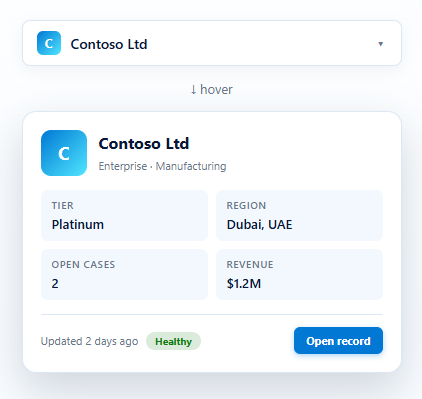
Bind it to any Lookup column. The chip stays exactly as the user expects — same shape, same chevron, same click-to-open behaviour. But hover or focus the chip and a card slides out next to it, showing:
- The related record's primary image (or a coloured initials avatar)
- Up to 6 fields in a 2-column grid
- A relative "Updated 2h ago" timestamp
- A state badge (green for active, grey for inactive)
- A one-click Open record button
The card knows where it has space. It positions itself to the right if there's room, below if not, above as last resort. Press Escape to dismiss. Tab navigation works. Touch-tap toggles it. ARIA-labelled throughout.
It's the polish you'd expect — but the genuine cleverness is in the configuration model.
The configuration problem
Here's the question every PCF developer hits the moment they build something configurable: how does the admin tell the control which fields to show?
I had four options.
Option 1: Text input with comma-separated logical names
jobtitle,parentcustomerid,emailaddress1,telephone1
Maker types the field list into the form designer. Total flexibility — and a UX disaster. Did they spell address1_telephone1 correctly? Did they remember the lookup is parentcustomerid not parentaccount? Are they on Account or Contact? Typos silently fail. Hard pass.
Option 2: Multiple field-bound properties
Add field1, field2, field3, field4 to the manifest as separate properties. Each shows as a real field-picker dropdown. Cleaner UX… except PCF can only bind to fields on the current entity, not on the related entity the lookup points to. So this doesn't actually work for showing fields about the related record.
Option 3: Auto-detect from metadata
Read the entity's attribute metadata, filter to non-system / non-empty / read-allowed, pick the first 4 with values. Truly zero-config. Works on any custom table. But "first 4 useful-looking" is a guess, not curation — the admin can't influence which fields get shown.
Option 4: Read the entity's Quick View Form
This is the one. And it's the one that became the entire point of SmartLookup.
The Quick View Form trick
Microsoft already has a form type built into Power Apps for exactly this use case: the Quick View Form.
It's the form admins drag-and-drop together when they want to show a "summary" of a record in a preview context. You go into Power Apps → table → Forms → New → Quick View Form → drag fields onto the canvas → save.
If you've ever seen Microsoft's own "hover an Account lookup, see the Account's quick view" preview on a form in newer Power Apps releases, that's what powers it. The QVF.
The insight: anyone who'd ever configure SmartLookup already knows how to edit a Quick View Form. It's the standard tool. Admins don't need to learn a new configuration screen, a new JSON shape, a new attribute-naming convention. They edit the QVF — SmartLookup follows.
Drag a field onto the QVF → it appears in the SmartLookup card on the next refresh. Re-order fields on the QVF → SmartLookup re-orders. Remove a field → it disappears. No PCF redeploy. No per-form setup. No JSON anywhere.
That's the contract. Use Microsoft's primitive, get the integration for free.
How it actually works
When SmartLookup needs to decide which fields to fetch, it runs through a four-level cascade:
1. previewFields override   →  if maker pasted a comma-list, that wins
2. Quick View Form          →  read the entity's QVF — the recommended path
3. SMART_DEFAULTS[entity]   →  hardcoded for OOB Account/Contact/Lead/etc.
4. Generic candidates       →  metadata-driven fallback for unknown tables
The QVF lookup itself is straightforward:
const result = await context.webAPI.retrieveMultipleRecords(
  "systemform",
  `?\(select=name,formxml&\)filter=` +
  `objecttypecode eq '${entityName}'` +
  ` and type eq 6` +              // 6 = Quick View Form
  ` and formactivationstate eq 1` // 1 = Active
);
Then parse the formxml and extract every <control datafieldname="X">:
const doc = new DOMParser().parseFromString(formXml, "text/xml");
const controls = doc.querySelectorAll("control[datafieldname]");
const fields = Array.from(controls)
  .map(c => c.getAttribute("datafieldname"))
  .filter(Boolean);
That's the entire core of it. Five effective lines.
What gets filtered (and why)
The QVF gives us an ordered list of field names. But not every field on a QVF makes sense on a hover card. So SmartLookup runs five filter stages:
- Drop sub-grids and sub-quick-view-forms. Their definitions don't even have
datafieldname— they're skipped at extraction. - Drop audit noise.
createdon,modifiedon,createdby,modifiedby,statecode,statuscode,versionnumber. They're either already shown in the card chrome (Updated time, status badge) or pure clutter. - Drop duplicates. Admins sometimes add the same field twice.
- Cap at 6 fields. A hover card should be scannable in two seconds. Past 6 it becomes a mini-essay.
- Drop empty values on the actual record. If
mobilephoneis on the QVF but null on this user, the cell collapses. The card stays sparse and clean.
The mental model in one sentence:
"Take the field list from the QVF, drop the audit noise and duplicates, cap at 6, then drop anything the record has no value for — what's left, in QVF order, with formatted values, is your grid."
Predictable. Debuggable. Intentionally biased toward showing less when in doubt.
Two more things that make it feel solid
Aggressive caching. Metadata fetched once per entity per session. QVF parsed once per entity per session. Records cached by entity:id so opening the same lookup twice is instant. A form with ten SmartLookups doesn't hammer the API.
Graceful error fallbacks at every layer. The official context.utils.getEntityMetadata() is preferred, but if it fails the control tries Xrm.WebApi.retrieveMultipleRecords against EntityDefinition, and if that fails it falls back to hardcoded set-name guesses for common entities. The card always renders something — never breaks.
If a fetch genuinely fails, you see "Preview unavailable" with the real API rejection message (not the generic "couldn't be loaded" you might be used to). DevTools console gets a clean log line:
[SmartLookup] field source for systemuser: qvf (jobtitle,businessunitid,internalemailaddress)
So you always know which path got taken: override, qvf, defaults, or generic.
Install and try it
Grab the latest managed-solution zip from the GitHub Releases page. Then:
- Power Apps maker portal → Solutions → Import → upload the zip → publish
- Open any model-driven form → edit the form → click a Lookup column
- Components → Get more components → Smart Lookup → Add
- Save and publish
That's it. Hover the lookup — the card appears.
To customise which fields show: edit the related entity's Quick View Form in Power Apps. SmartLookup follows automatically on the next form refresh.
What's next
- PCF Gallery submission is going up this week
- Open issues / ideas for v1.2 are tracked on GitHub — the next milestone is letting the maker pick a specific Quick View Form by name when the entity has multiple
- PRs welcome — MIT licensed, fork freely
If SmartLookup saves you an afternoon, ⭐ the repo — it's the easiest way to say thanks and helps other Power Platform developers discover it.
If you build something cool with it — a creative QVF setup, a custom-table application I didn't anticipate — open an issue with a screenshot or tag me on LinkedIn. I'd genuinely love to see it.
This is post #4 in the PCF Build-Alongs series. Previous: LiquidProgress — a modern % control for Power Apps.


